1.5 Backup Solutions
One of the most important aspects of running a home lab is to have a proper backup strategy. It depends for sure on how important the data is for you, but let's face it we prefer not to loose any of your data. Right now, Big Tech corporations take care of that but now you need to do it yourself.
The 3-2-1 backup rule was developed by Peter Krogh, a photographer and author known for his book "The DAM Book: Digital Asset Management for Photographers," where he discusses best practices for safe data storage. This strategy has become a widely recommended best practice for data protection
- 3 Backups
- 2 Different mediums
- One off site
So do you need to follow this ? Well ;) Not necessarily but if you have the resources for it then it is definitely recommended. Just to make sure you don't loose your child hood photos an videos or personal documents and notes is already a great reason to have a 3-2-1 backup strategy. But well we will discuss multiple options in this book from the simplest, cheapest to the most advanced and costly setup.
If you followed along with the previous books it is assumed that you have a Proxmox server and TrueNas Scale instance running. Hence, we will focus on backing up these two instances with Proxmox Backup Server and another TrueNas Scale instance.
- 1. Backup Storage Locations
- 1. Same PVE machine same drives (Requires 1 Machine)
- 2. Same PVE Machine Dedicated Drives (Requires 1 Machine)
- 3. Dedicated TrueNas scale with virtual PBS (Requires 2 machines)
- 4. Dedicated PVE & TrueNas Backup, Virtual Truenas Scale VM, and PBS Container (Requires 3 machines)
- 5. Dedicated PVE, TrueNas, PBS, Truens Backup (Requires 4 machines)
- 2. PBS Container on TrueNas Scale
- 3. Create Backup Jobs
- 3. PBS LXC/VM on a second PVE Instance
- 4. PBS Container on TrueNas Scale
- 6. TrueNas Backups
- 4. Remote Backups
- 4. PBS on Bare Metal
- 5. Restore from PBS Backup
- 1. Restore VM's From PBS when production node is destroyed
- 4. PBS OS drives are broken but storage disks are intact, what to do ?
- 9. Restore VM's from VM Disks
1. Backup Storage Locations
Now, installing Proxmox backup server and another TrueNas Scale instance is not really the problem. If you have already set up PVE and TrueNas scale then it is super simple. The real culprit is where to sore the backup data. We will discuss the different storage locations and tell with each option what the advantages and disadvantages are. It is then up to you which storage locations to choose for your setup.
We will discuss solutions if you only have one machine, two or three machines to your disposal ;)
1. Same PVE machine same drives (Requires 1 Machine)
The first backup strategy we will execute is the simplest but also the most vulnerable one. This means you store your backup on the same hard drives you also run your production system on. This is highly discouraged but for completeness we will still discuss it if you don't have other storage drives to your disposal.
2. Same PVE Machine Dedicated Drives (Requires 1 Machine)
In this strategy we will use different storage drives for our backups. We assume a Proxmox environment from which you want to backup the virtual machines. What we will do is
- Create a Proxmox PBS VM on our main PVE machine
- Pass through the drives to the PBS VM (1 drive would suit but a mirrored pool would of course be best). This prevents the ZFS on top of ZFS problem.
- Then schedule backup jobs to our PBS on the same machine but stored on separate drives
This method is especially great if you have a system that allows for multiple drives for storage. For instance an ATX case would be great for this. You could have for instance a mirrored ZFS pool for production and then a third drive or mirrored pool dedicated solely to backups. So yes if you just have a small mini pc that has no options for drive expansion then this method won't be for you.
Pass Through the Drives
Benefits
Performance Impact: A PBS VM on the same system can experience noticeable performance degradation during large backup operations, as it competes for disk I/O and CPU cycles with production workloads. A bare metal PBS system provides guaranteed performance without contention.
Reliability: With a bare metal deployment, if your production hypervisor or its storage fails, your backups remain completely separate and accessible. A VM-based approach creates a single point of failure at the host level.
Practical Trade-offs: The VM approach makes sense for smaller deployments where backup windows are outside peak production hours and where cost is a primary concern. Bare metal becomes more attractive as your backup volume grows or if downtime tolerance is very low.
Enhanced Data Protection
- Isolation from Hardware Failures: Storing backups on separate drives protects against data loss due to hardware failures or corruption in the production environment.
- Corruption Prevention: If the production drives become corrupted, backups on different drives remain intact and accessible.
Improved Security
- Threat Isolation: Keeping backups on different drives enhances security by isolating them from potential threats that may affect the production environment.
- Access Control: This separation allows for stricter access controls, reducing the risk of unauthorized access to backup data.
Backup Integrity
- Consistent Availability: Backups stored on different drives ensure that they are available even if the primary system experiences downtime or issues.
- Disaster Recovery: In the event of a disaster, having backups on separate drives facilitates quicker recovery processes, minimizing downtime.
3. Dedicated TrueNas scale with virtual PBS (Requires 2 machines)
Here we will setup PBS on top of Truenas Scale as a container. Why would you do this ? well if you run both proxmox pve and run a Truenas VM or bare metal then you have two different systems to backup. You want to backup your VM's and you want to back up your TrueNas datasets. Both are optimised for running a second bare metal Proxmox PBS and a bare metal Truenas instance. However, this means you need to get two devices. The middle ground is get 1 extra host where TrueNas and PBS both have direct access to the zfs pools instead of having ZFS on top of ZFS.
Source: Why run PBS on Truenas ?
4. Dedicated PVE & TrueNas Backup, Virtual Truenas Scale VM, and PBS Container (Requires 3 machines)
This setup is the most robust setup but is also the most expensive setup and often not necessary for a home lab. This setup basically has
- Dedicated PVE instance
- Truenas Scale installed on the PVE instance as a VM with passed through drives
- Dedicated Truenas Scale backup machine
- Dedicated Proxmox Backup server machine
We will not go into discussing setting this up since there is no difference in installation that we not already discussed before. It is just included for completeness to show how professional environments are setup. However,
5. Dedicated PVE, TrueNas, PBS, Truens Backup (Requires 4 machines)
2. PBS Container on TrueNas Scale
02. PBS Configruation
1. After installing Proxmox backup server we need to configure it to our needs. As with Proxmox we will also start with the post install script but then for Proxmox Backup Server. The command is according to proxmox helper scripts is
bash -c "$(curl -fsSL https://raw.githubusercontent.com/community-scripts/ProxmoxVE/main/tools/pve/post-pbs-install.sh)"2. Next is setting up a datastore
3. This datastore can be local, removable, s3 or an nfs share.
For an LXC container
03. Setup VM replication tasks
Now that you have setup the datastore on your PBS host you can start connecting it to your PVE system.
- On the PBS you click on your datastore > Show connection information and keep the tab open s.t you can copy paste it to your PVE you want to backup.
- Then open your PVE and go to Datacenter > Storage > +Add and select Proxmox Backup server
- Fill in the credentials of your backup server that you gathered at 1.
- Then add it and done !!
Sweet the pbs is now connected so now we can set up some backup tasks to the VM's you wan to back up.
- Go to Datacenter > Backup > + Add
Backup Job
Retention Period
After you have set when you want to take backups you need to set how long you want to keep your backups. If you don't set a retention period for Proxmox backup jobs, backups will accumulate indefinitely, potentially leading to excessive storage use and making it difficult to manage backup data effectively. Now there are different retention variables that can all be found on the Proxmox Wiki page. For instance
keep-last <N>: Keep the last <N> backups
keep-hourly <N>: Keep backups for the last <N> hours. If there is more than one backup for a single hour, only the latest is kept.
keep-daily <N>: Keep backups for the last <N> days. If there is more than one backup for a single day, only the latest is kept.
keep-weekly <N>: Keep backups for the last <N> weeks. If there is more than one backup for a single week, only the latest is kept.
Now, you need to set
How Many Hourly Backups to Keep?
The right value depends on your needs:
- keep-hourly: 24 — Keep the last 24 hours of backups (one per hour). This is a common choice for high-availability or critical systems.
- keep-hourly: 48 — Keep the last 2 days of hourly backups for more granular recovery options.
- keep-hourly: 6 — Keep only the last 6 hours if you want minimal storage overhead.
Which Daily Backup Gets Kept?
The backup that's retained as your "daily" backup is typically the most recent one from that day—but the exact one depends on when pruning runs.
Example scenario with hourly backups:
- Backups created at: 1 AM, 2 AM, 3 AM, ..., 11 PM every day
- When pruning runs, it usually keeps the latest backup from each 24-hour period
- So the 11 PM backup from 7 days ago would be kept as your "daily" representative
The Real Benefit
With hourly backups and keep-daily=7, you actually get much better recovery granularity than traditional daily backups:
- You have all hourly backups from the last 1 day (keep-hourly: 24)
- Plus one backup per day for the previous 6 days (keep-daily: 7)
- Plus your 4 weekly and 1 monthly backup
This means you can recover to any hour for the last day, and any day for the last 7 days—far better than just having one backup per day.
With the prune-backups option you can specify which backups you want to keep in a flexible manner.
The following retention options are available:
keep-all <boolean>-
Keep all backups. If this is
true, no other options can be set. keep-last <N>-
Keep the last
<N>backups. keep-hourly <N>-
Keep backups for the last
<N>hours. If there is more than one backup for a single hour, only the latest is kept. keep-daily <N>-
Keep backups for the last
<N>days. If there is more than one backup for a single day, only the latest is kept. keep-weekly <N>-
Keep backups for the last
<N>weeks. If there is more than one backup for a single week, only the latest is kept.
 |
Weeks start on Monday and end on Sunday. The software uses the ISO week date-system and handles weeks at the end of the year correctly. |
keep-monthly <N>-
Keep backups for the last
<N>months. If there is more than one backup for a single month, only the latest is kept. keep-yearly <N>-
Keep backups for the last
<N>years. If there is more than one backup for a single year, only the latest is kept.
The retention options are processed in the order given above. Each option only covers backups within its time period. The next option does not take care of already covered backups. It will only consider older backups.
Specify the retention options you want to use as a comma-separated list, for example:
3. Create Backup Jobs
1. Things to Note
If you want to backup a VM with a passed through drives then I would recommend to only backup the VM disks and not the drives. For instance if you have two 18 TB drives passed through to a TrueNas VM then you don't want to back these ones up with PBS. That is because TrueNas has its own backup solution for datasets. To turn off backing up all the disks simply go to the VM
Then Hardware and double click on the drives you don't want to backup with PBS. Then click advanced, and you will see the backup box. Makes sure you untick this box. This will then make sure that the passed thorugh drives are not backed up by PBS since this can take ages especially if the drives are big.
2. PVE Backup Jobs
On this page we will describe how you can create a backup job on your PVE machine. It is assumed that you have already set up your PBS system and connected your PBS system to your PVE machine as well. With that out of the way we create a backup job to your PBS in the following way
1. From your Dashboard go to > Datacenter > Backup > +Add
2. Then you will be presented with the following screen
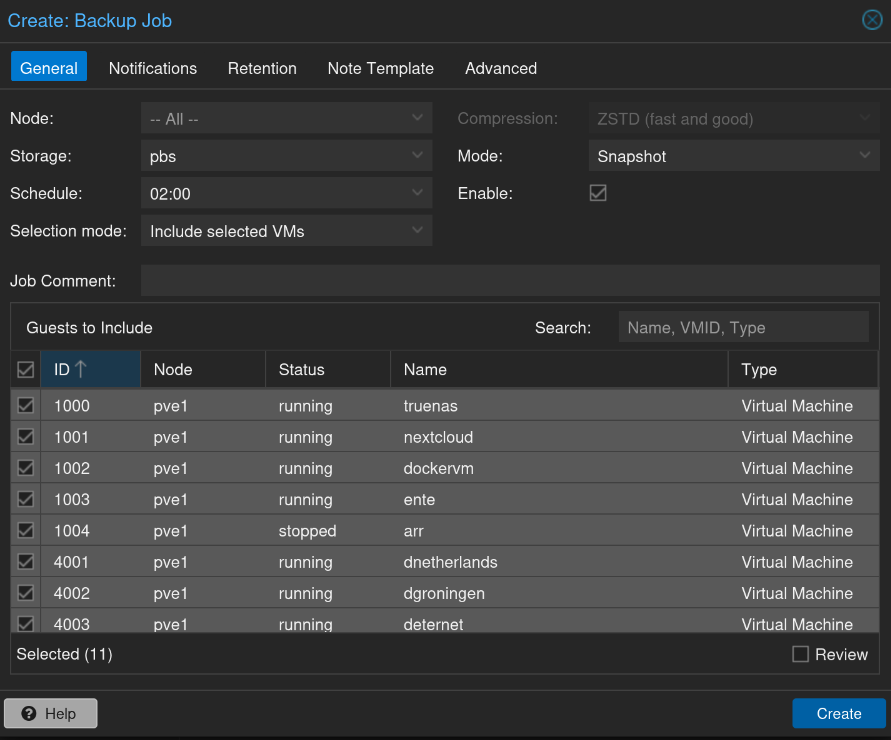
3. Now make sure you select for Storage: PBS and not your local storage
4. Then set a schedule i.e how often you want the backup job to run. So what to choose ? Well I like to make sure that my backups are taken before the Update schedule has run for all my containers in Dockhand. In my situation I have Dockhand checking for updates every day at 03:00 and also update them automatically if it is available. This comes with some risk because automatic updates could break things. Therefore I like to take my backups one hour before. In this situation if I wake up and all is to hell then I can just rewind to the latest backup that was taken at 02:00. So depending on your Update schedule I would recommend to schedule it 1 hour before the update schedule ;)
5. Perfect, now we need to look at retention. That is how long will different backups be kept before they are garbage collected. From there Wiki you have the following options
For this example, we assume that you are doing daily backups, have a retention period of 10 years, and the period between backups stored gradually grows.
keep-last=3- even if only daily backups are taken, an admin may want to create an extra one just before or after a big upgrade. Setting keep-last ensures this.keep-hourlyis not set - for daily backups this is not relevant. You cover extra manual backups already, with keep-last.keep-daily=13- together with keep-last, which covers at least one day, this ensures that you have at least two weeks of backups.keep-weekly=8- ensures that you have at least two full months of weekly backups.keep-monthly=11- together with the previous keep settings, this ensures that you have at least a year of monthly backups.keep-yearly=9- this is for the long term archive. As you covered the current year with the previous options, you would set this to nine for the remaining ones, giving you a total of at least 10 years of coverage.- We recommend that you use a higher retention period than is minimally required by your environment; you can always reduce it if you find it is unnecessarily high, but you cannot recreate backups once they have been removed.
6. So in my personal case it looks like this
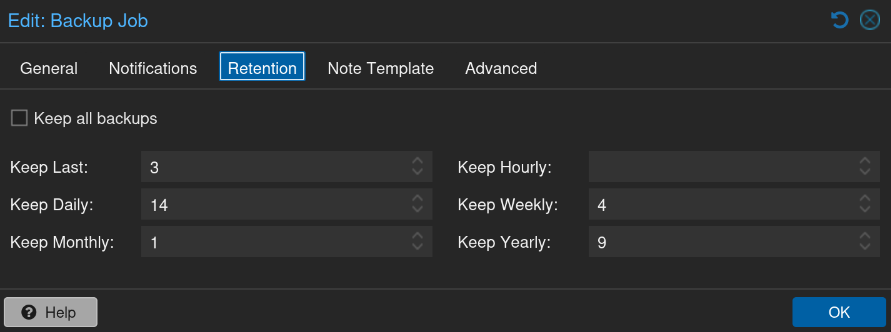
7. Perfect then hit OK and create the backup job!!!!
8. Now,
3. PBS LXC/VM on a second PVE Instance
This strategy is exactly the same as the second strategy but the difference is that you run PBS on a different local machine all together. Now, it is up to you if you install PBS bare metal on this machine or you create another PVE 2 host with PBS running as a VM on there s.t you can use the excess resources for something else. We will discuss both in this chapter
1. Hosting PBS on a Secondary PVE Host, but Why ?
Hosting Proxmox Backup Server (PBS) as a VM on a secondary PVE host rather than on your production cluster offers significant practical and operational advantages.
Resource Efficiency and Flexibility
Instead of purchasing dedicated bare-metal PBS servers, running PBS as a VM on a secondary PVE allows you to maximize hardware utilization. You can spin up additional VMs and LXC containers on the same secondary host to use otherwise idle resources, making better use of your infrastructure investment. This approach consolidates multiple needs—backup infrastructure and supplementary compute capacity—onto a single secondary machine rather than requiring separate dedicated hardware.
Importantly, this setup accommodates TrueNas VMs, which require specialized backup handling. TrueNas, like Proxmox, prefers backing up to another instance rather than to standard PBS servers. By hosting both a TrueNas VM and PBS on your secondary PVE, you create an ideal backup arrangement where TrueNas can back up to a dedicated PBS instance without requiring multiple separate servers. This is far more efficient than either backing up TrueNas directly to PBS (which is not ideal) or purchasing entirely separate hardware for each component.
Performance and Stability
Performance isolation is the primary benefit. Backup operations won't compete with production workloads for CPU, memory, network bandwidth, or storage I/O. Your production VMs—including any TrueNas instances running on production—maintain consistent performance regardless of backup job complexity or frequency, and you can run aggressive backup schedules, deduplication tasks, and cleanup operations without impacting active workloads.
Disaster Recovery and Business Continuity
Separating PBS from production provides critical disaster recovery advantages. If your production PVE cluster experiences issues, your backup infrastructure remains unaffected and fully capable of restoring services. More importantly, if your production cluster goes down, you can still spin up critical VMs or LXC containers on the secondary PVE—such as Netbox or Bookstack instances—to help you manage recovery and restoration efforts, even if you're unable to directly access physical infrastructure.
Operational and Architectural Benefits
The secondary host approach allows you to attach multiple virtual drives to your PBS instance, enabling multiple datastores that you can organize logically for different backup purposes rather than consolidating everything into a single datastore. This architecture treats backups as the critical infrastructure component it truly is, deserving of dedicated resources similar to how you'd isolate database servers or security appliances.
2. Installation
The installation of PBS as a VM on a secondary PVE is quite straightforward and basically exactly the same as installing it on the production VM. You can of course again decide to have your OS on two or one SSD. I would recommend two again since if one fails then at least your proxmox PBS that runs on your PVE is not gone. Plus another benefit is that you can always upscale your storage by re silvering the mirror with a drive that has more capacity.
- First of all copy the link of the Proxmox Backup server from its downloading page
- Then download the ISO to your PVE2 instance
- Then create a new VM on PVE 2 and attach the
4. PBS Container on TrueNas Scale
Here we will setup PBS on top of Truenas Scale as a container. Why would you do this ? well if you run both proxmox pve and run a Truenas VM or bare metal then you have two different systems to backup. You want to backup your VM's and you want to back up your TrueNas datasets. Both are optimised for running a second bare metal Proxmox PBS and a bare metal Truenas instance. However, this means you need to get two devices. The middle ground is get 1 extra host where TrueNas and PBS both have direct access to the zfs pools instead of having ZFS on top of ZFS.
Now, ZFS on top of ZFS happens if you have a second PVE instance on which you run a PBS and TrueNas Scale VM. Then you need at a minimum at least 2 drives one to pass through to the PBS VM and one to the TrueNas VM. If you only have one storage drive
Source: Why run PBS on Truenas ?
1. Introduction
Note! Running another Truenas on bare metal also allows you to run proxmox pbs as a container! If you have just as me one production device and a small backup server with like 4cpus and 16gb of ram then this would be great solution for you. Otherwise you need to have at least 3 devices.
This method involves backing up your Truenas datasets to another Truenas VM running on another host.
- Now, it is up to you if you want to use dedicated drives for this (which is best) however you can also attach virtual disks such you can use one disk for Truenas dataset backups and for PBS backups. This is what I am currently running in my home lab at least.
2. Installation
Source: PBS on Truenas by Lawrence Systems
Alright! So you have chosen to install PBS on top of a TrueNas Scale bare metal instance. Well we don't need to go through installing TrueNas scale since you have already don that here Installing TrueNas Scale. Okey so you have your TrueNas scale up and running then this will be the steps
Creating a generic dataset for your PBS container
- Log in to your TrueNAS Web UI.
- Navigate to Datasets on the left sidebar.
- Select the parent dataset or pool where you want the backups to live.
- Click Add Dataset (top right).
- Name:
pbs-storage(or your preferred name). - Dataset Preset: Select Generic.
-
Click Save.
In TrueNAS Create the Subdirectory and Set ACLs
Working in a subdirectory prevents PBS from conflicting with any special folders and let’s set and limit user permission. We will perform this in the TrueNAS Shell.
- Go to System Settings → Shell or use SSH
- If using the web shell use
sudoof if you are notrootuser - Go into the new dataset
cd /mnt/tank/pbs-storage/ - Create the directory:
mkdir datastore1 - Set Backup Owner For Container
chown -R 2147000035:2147000035 datastore1 - Apply the Access ACL & Default ACL (Inheritance):
setfacl -m u:2147000035:rwx,d:u:2147000035:rwx datastore1
Where do the permissions come from ?
In TrueNAS 25, the default mapping for unprivileged containers starts at 2147000001.
- Base ID: 2147000001 (This is the “Start” of the container’s world).
- Root (0) inside the container: 2147000001 + 0 = 2147000001 on the Host.
- Backup (34) inside the container: 2147000001 + 34 = 2147000035 on the Host.
- Standard User (1000) inside the container: 2147000001 + 1000 = 2147010001 on the Host.
| If you are… | ID in the Container | ID on the TrueNAS Host |
|---|---|---|
| Root User | 0 | 2147000001 |
| PBS Backup User | 34 | 2147000035 |
| Standard User | 1000 | 2147010001 |
Truenas VM with virtual drives
If you want to go the virtual drive route then there is one little tweak that you need to make for TrueNas VM to recognize different drives.
- Go your backup PVE's shell and nano into /etc/pve/qemu-server/VM-ID.conf
- In here you want to add serial numbers to the disks that you added to the VM
- This does not need to be complicated, they just need to be different for each drive. For instance you could use serial=DRIVE00X for each drive and changing X for each added drive. For instance with two drives it looks like this
scsi0: local-zfs:vm-1002-disk-0,discard=on,iothread=1,size=12G,ssd=1,serial=DISK001
scsi1: tank:vm-1002-disk-1,discard=on,iothread=1,size=2000G,ssd=1,serial=DISK002
6. TrueNas Backups
This chapter describes how you can backup your TrueNas VM or bare metal instance to another TrueNas instance. We will discuss both how to backup to another local instance and a remote instance.
1. Installation
It is up to you where you will run your second TrueNas Scale instance, but it is recommended to either store it bare metal or as a VM with dedicated drives.
- You have a PBS machine
- You have a TrueNas scale machine VM or bare metal
- And a third machine
If you only have one extra machine and not enough drives to provide pass through to a PBS VM and TrueNas scale VM then I would recommend to run run TrueNas scale bare metal and install PBS as container on top of it. This does of course mean that you cannot create another PVE VM for other purposes on the backup instance. However, TrueNas Scale also offers containers, and vm's nowadays so you could still run some extra apps on the backup machine if you have the resources and would like to do that.
2. Snapshots
Source: TrueNas Replication Task
Note! Running another Truenas on bare metal also allows you to run proxmox pbs as a container! If you have just as me one production device and a small backup server with like 4cpus and 16gb of ram then this would be great solution for you. Otherwise you need to have at least 3 devices.
This method involves backing up your Truenas datasets to another Truenas VM running on another host. This could for instance be your backup PVE instance on which you also run Proxmox backup server as a VM.
- Now, it is up to you if you want to use dedicated drives for this (which is best) however you can also attach virtual disks such you can use one disk for Truenas dataset backups and for PBS backups. This is what I am currently running in my home lab at least.
Truenas VM with virtual drives
If you want to go the virtual drive route then there is one little tweak that you need to make for TrueNas VM to recognize different drives.
- Go your backup PVE's shell and nano into /etc/pve/qemu-server/VM-ID.conf
- In here you want to add serial numbers to the disks that you added to the VM
- This does not need to be complicated, they just need to be different for each drive. For instance you could use serial=DRIVE00X for each drive and changing X for each added drive. For instance with two drives it looks like this
scsi0: local-zfs:vm-1002-disk-0,discard=on,iothread=1,size=12G,ssd=1,serial=DISK001
scsi1: tank:vm-1002-disk-1,discard=on,iothread=1,size=2000G,ssd=1,serial=DISK002
4. Remote Backups
Now, regardless if you have setup your backups via method 1,2 or 3 it is still advised to have a remote backup in place. This is also known as a disaster recovery backup in the case of your house burning down, a flood, your setup gets stolen or come up with another crazy reason your stuff would be gone. In that case you wished you had a remote backup in place. In this chapter we will discuss just that
1. Remote PBS
2. Remote S3 Storage
Deduplication Capabilities
Remote PBS is generally better if you're looking for performance, cost efficiency, and faster recovery times—especially if you have control over both your local and remote PBS instances on reliable networks. You get PBS's full optimization for backup workflows.
S3 is better if you prioritize cloud-based redundancy, geographic distribution, vendor lock-in avoidance, or if you lack a reliable remote location for another PBS instance. The higher costs may be worth it for extreme durability and geographic resilience.
For most setups with control over infrastructure, PBS-to-remote-PBS is the superior choice due to better performance and lower costs.
When PBS-to-PBS is Better
- Bandwidth efficiency: Deduplication before transmission saves significant bandwidth for remote replication
- Storage efficiency: The remote PBS instance benefits from ongoing deduplication across all backups
- Recovery speed: Direct PBS-to-PBS transfers and restores are typically faster than S3 retrieval
- Cost: Less storage consumed on the remote side due to deduplication
When S3 Might Be Acceptable
- Geographic distribution: S3 offers geo-redundancy and availability across regions
- Disaster recovery: Completely separate infrastructure from your PBS systems
- Compliance: Some regulations prefer data in cloud object storage
- Simplicity: Less infrastructure to manage
For most scenarios, you're right that another PBS system is superior for deduplication efficiency and performance, but S3 still serves valid use cases, particularly for geographic separation and disaster recovery scenarios.
3. RustFS remote setup
Offsite Managed PBS
Your Proxmox backups live on the same server as your VMs. Maybe on the same disk array. If that server catches fire, gets cryptolocked, or eats its ZFS pool, your backups go with it. Offsite backup fixes this, but choosing the right offsite approach in 2026 isn't straightforward. This guide covers every realistic option and helps you pick one.
Key Takeaways
-
Managed PBS hosting is the fastest path to offsite backups with zero infrastructure overhead
-
S3 object storage (B2, Wasabi) works with PBS 4.0 but adds egress costs and is still a tech preview
-
Self-hosting PBS on a VPS gives full control but costs more time than money
-
Veeam supports Proxmox since v12.2 but skips LXC containers and requires Windows
-
The right choice depends on your data volume, technical skill, and how much time you want to spend on infrastructure
Why Offsite Backups Matter for Proxmox
Local backups protect you from accidental deletion and disk failures. They don't protect you from ransomware that encrypts every reachable volume, a datacenter fire, a stolen server, or a disgruntled admin who wipes the RAID array.
Proxmox Backup Server already handles incremental, deduplicated backups brilliantly. The missing piece for most homelabs and small businesses is getting a copy out of the building. The 3-2-1 backup strategy puts it simply: at least one copy offsite.
The question is how.
Option 1: Managed PBS Hosting
Managed Proxmox Backup Server hosting means someone else runs a PBS instance for you. You point your local PBS at their remote, create a sync job, and encrypted backups replicate on schedule. No VPS to maintain, no storage to provision, no security to harden.
Providers: remote-backups.com, Tuxis, and a few smaller operators.
How it works
Your local PBS creates a sync job with --encrypted-only targeting the remote PBS. Only encrypted chunks transfer. The remote side handles deduplication, verification, and pruning independently. You get server-side verification without egress costs.
Pros
- 5-minute setup via PBS GUI
- Native sync jobs, pruning, and verification
- Flat-rate pricing with no egress fees
- Client-side encryption means the provider never sees your data
- No servers to maintain
Cons
- Higher per-TB cost than raw storage (€8.50/TB vs €3-5/TB for object storage)
- You depend on the provider's infrastructure and uptime
For most Proxmox users, this is the fastest path from "no offsite backup" to "offsite backup working."
Option 2: S3 Object Storage with PBS 4.0
PBS 4.0 introduced S3-compatible datastores as a tech preview. This means you can point a PBS datastore at an S3 bucket from providers like Backblaze B2, Wasabi, IDrive e2, or Hetzner Object Storage.
How it works
You configure an S3 endpoint in PBS, provide access keys, and PBS writes backup chunks as objects. From PBS's perspective, it behaves like a local datastore backed by remote storage.
Pros
- Low per-TB storage costs ($5-7/TB/month depending on provider)
- No server infrastructure to manage
- Scales to massive datasets without provisioning
Cons
- S3 datastore support is a tech preview, not production-ready
- Verification downloads all chunks (egress costs)
- No server-side deduplication (each chunk is a separate S3 object)
- Restores incur egress fees
- API rate limits can slow operations on large datastores
The Backblaze B2 comparison breaks down the real-world cost when you include verification and restore egress.
Egress Costs Add Up Fast
Verifying a 2 TB datastore on B2 costs ~$20 per run. Weekly verification adds $80/month on top of storage. Budget for egress before committing to S3-based offsite backup.
Option 3: Self-Hosted PBS on a VPS
Rent a VPS from Hetzner, Netcup, OVH, or similar, install PBS, and sync your local instance to it. Full control, full responsibility.
How it works
You provision a VPS with enough storage, install PBS, configure ZFS or ext4, harden SSH, set up a firewall, and create a sync job from your local PBS to the remote instance.
Pros
- Full root access and control
- Can serve multiple PBS clients
- Reuse the VPS for other services
- Choose any provider and location
Cons
- You manage OS updates, PBS updates, and security patches
- ZFS on a VPS has quirks (no native ARC tuning, limited RAM)
- Monitoring, alerting, and maintenance are on you
- A misconfigured firewall or expired certificate means failed sync jobs you might not notice
The self-hosted VPS comparison has a detailed cost breakdown versus managed PBS.
Storage Box Workaround
Some users rent a Hetzner VPS plus a Storage Box, mounting the box via CIFS. This adds complexity and can cause reliability issues. See the Hetzner Storage Box comparison for details.
Option 4: Commercial Backup Software
Enterprise tools like Veeam and NAKIVO have added Proxmox support. They bring features PBS doesn't have, but with trade-offs.
Veeam Backup & Replication
Veeam added Proxmox VE support in version 12.2. It handles VM-level backup with application-aware processing, centralized management, and multi-hypervisor support. But it requires a Windows server to run, doesn't back up LXC containers, and licensing costs scale with your VM count. There's no Community Edition for Proxmox.
NAKIVO Backup & Replication
NAKIVO also supports Proxmox VE. Similar feature set to Veeam with a different pricing model. Same limitation around LXC containers.
When commercial software fits
- You run Proxmox alongside VMware or Hyper-V and need one tool for all
- Compliance requirements demand application-aware backups (Exchange, SQL Server)
- You have budget for enterprise licensing
For Proxmox-only shops, PBS is purpose-built, free, and handles both VMs and LXC containers. Adding a managed offsite PBS target gives you the offsite leg without switching backup tools.
Option 5: DIY Physical Offsite
The old-school approach: run a second PBS at a friend's house, a colo facility, or a branch office. Connect via VPN and sync.
How it works
Set up a physical machine with PBS at a second location. Create a site-to-site VPN (WireGuard works well) and configure sync jobs over the tunnel.
Pros
- No monthly per-TB costs beyond electricity and internet
- True physical separation
- You control every layer of the stack
- Can be air-gapped (disconnect after sync for ultimate protection)
Cons
- Requires hardware at a second location
- Internet upload speed limits initial sync (use the seed calculator)
- You maintain two physical machines
- Hardware failures at the remote site need physical access to fix
- Asymmetric home internet connections make initial seeding slow
This approach makes sense if you already have a second location and spare hardware. Otherwise, the upfront and ongoing effort is hard to justify.
How to Choose
Your best option depends on four factors:
Data volume: Under 5 TB, managed PBS or S3 storage both work well. Over 10 TB, per-TB pricing differences compound and self-hosting or DIY physical starts to make financial sense.
Technical skill: If you're comfortable managing VPS security, ZFS tuning, and PBS updates, self-hosting saves money. If backup infrastructure isn't where you want to spend your time, managed PBS removes that work entirely.
Budget: Raw storage is cheapest on S3 or Storage Boxes. But total cost of ownership (including time, egress, and risk) often favors managed PBS for datasets under 10 TB.
Compliance: If you need GDPR-compliant EU data residency, your options narrow to EU-based providers. If you need application-aware backup, Veeam is the answer.
Offsite Backup Options Compared
| Factor |
Managed PBS
|
S3 (B2)
|
VPS + PBS
|
Veeam
|
DIY Physical
|
|---|---|---|---|---|---|
|
Monthly cost (2 TB)
|
€17/mo
|
~$12/mo + egress
|
€15-25/mo
|
License + storage
|
Hardware + power
|
|
Setup time
|
5 min
|
30-60 min
|
2-4 hours
|
Half day
|
Full day
|
|
Ongoing maintenance
|
None
|
Low
|
Monthly
|
Monthly
|
As needed
|
|
PBS native
|
Tech preview
|
||||
|
LXC container support
|
|||||
|
Free verification
|
|||||
|
Egress fees
|
None
|
$0.01/GB
|
None
|
Varies
|
None
|
Wrapping Up
Every Proxmox setup needs offsite backups. The best option isn't the cheapest per GB. It's the one you'll actually maintain. For most homelabs and small businesses, managed Proxmox Backup Server hosting hits the right balance of cost, simplicity, and reliability. For larger environments or control-first admins, self-hosted PBS on a VPS gives maximum flexibility at the cost of your time.
Pick one. Set it up this week. Test a restore next week. That's the whole plan.
4. PBS on Bare Metal
This is the recommended option and definitely the best option where the least amount of things can go wrong. If you have a professional setup with lots of data for VM's then this is definitely the route you should take.
5. Restore from PBS Backup
You deleted your favorite childhood pictures by accident, ransomware took hold of your data or maybe your whole machine lit on fire. Then how do we restore your precious data from the backups you have taken ? That is what we will discuss in this chapter
1. Restore VM's From PBS when production node is destroyed
In this page we will explain how you can restore a virtual machine from a backup server when your primary node is destroyed. Note that this is different when your production instance is still running. This really means, bam on fire or whatever it is completely broken and you need to get a new machine.
- The first step is to install Proxmox PVE on your new machine and make sure that if your network is still intact to place your PVE machine on the same network with the same IP addresses
- Also you need to reconfigure the Network Bridges and add the necessary VLAN's you have been using.
- Once that is done you need to connect to your Proxmox Backup Server in the same way you have already done here.
4. PBS OS drives are broken but storage disks are intact, what to do ?
Yes, you can reinstall Proxmox Backup Server (PBS) and import the backups even if the original PBS drive is broken, as long as your backup data itself is intact on separate storage.
Here's how it works:
The backup data is independent: Your actual backup files (VMs, containers, disk images) are stored as data on the external storage location. PBS is just the management layer that organizes and indexes those backups. If PBS itself fails, the backup data remains unchanged.
Reinstalling and recovering:
- Install a fresh Proxmox Backup Server on new hardware or a replacement drive
- Point PBS to your external backup storage (the drives/NAS where your backups are actually stored)
- PBS will scan and re-index the backup data from that external storage
- You'll be able to restore your VMs and containers from those backups
Important considerations:
- Your backups must be in a standard, accessible format (not encrypted in a way that requires the old PBS instance's keys, unless you have those keys)
- If you used PBS encryption, you'll need the encryption password/key to restore
- The external storage must be readable (accessible via NFS, SMB, or direct connection)
- There may be a brief period where PBS needs to re-catalog the backups before you can restore
Bottom line: Yes, this is a viable recovery scenario. The backup data is the critical part—PBS is replaceable. Just make sure your backups are on drives that are actually safe and accessible.
9. Restore VM's from VM Disks
In the occasion where your Proxmox OS drives fail or are corrupted and you have not local pbs backup then what ? Well hopefully you have stored all your VM's on different disks then your OS because in that case you can basically install a fresh Proxmox OS on a new drive and import back the VM's from the VM pool. That is what we will discuss here. We will focus here on ZFS pools but all other storage methods would work as well.
The guide that is used here comes from