
1. Wireguard Instance Creation

In this tutorial we will setup a Wireguard VPN Instance which will allow you to connect to your local network remotely. That means you can connect to it from any place in this world as if you were at home. This is extremely secure as well since it will use public private key cryptography. The mathematics does not matter here now, but the point is that you can only access your home network if you have a key that nobody else has. This is different if you would expose your home network or services to the public internet since then anyone could access your public facing services (at least the login screens, which is a security vulnerability)
1. First we will create a new Wireguard instance. Go to your OPNsense Dashboard and go to VPN > Wireguard > Instances > + Add
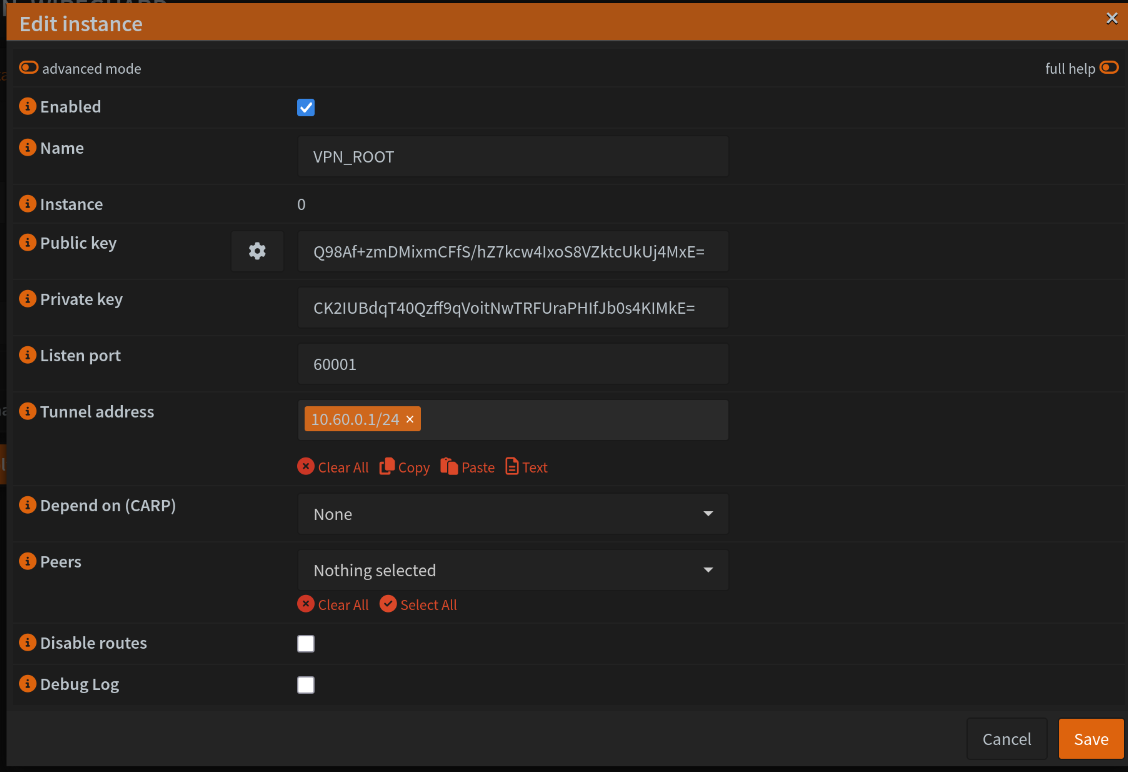
2. Provide it a name that is related to the VLAN you want to connect your Wireguard. In the case of root access I would leave it to VPN_ROOT.
3. Generate a Public and Private key by hitting the wheel button
4. Choose a listen port: Make sure you give each instance a different listening port. I would recommend to choose a port different from the default port 51820 since this port is often blocked by other networks you connect to.
5. Tunnel address: This will be a virtual network address given to your Wireguard instance. Its function exist for encryption, authentication and routing purposes. You and other peers will connect to this network. Hence, this is not the VLAN you want to connect to. We will do that later. I would recommend to choose the same 4 numbers that are in the port number. For instance if the port is 45891 then you could choose the IP address 10.45.89.1/24.
6. Then leave the other options untouched. This results then in something looking like this
7. Sweet! Then hit save and your instance is setup ;)
8. Then the most important step !! Don't forget to enable the Wireguard instance when you are done by hitting apply !! Check the box
- Enable Wireguard
No comments to display
No comments to display