
1.6.1.2 Dockhand
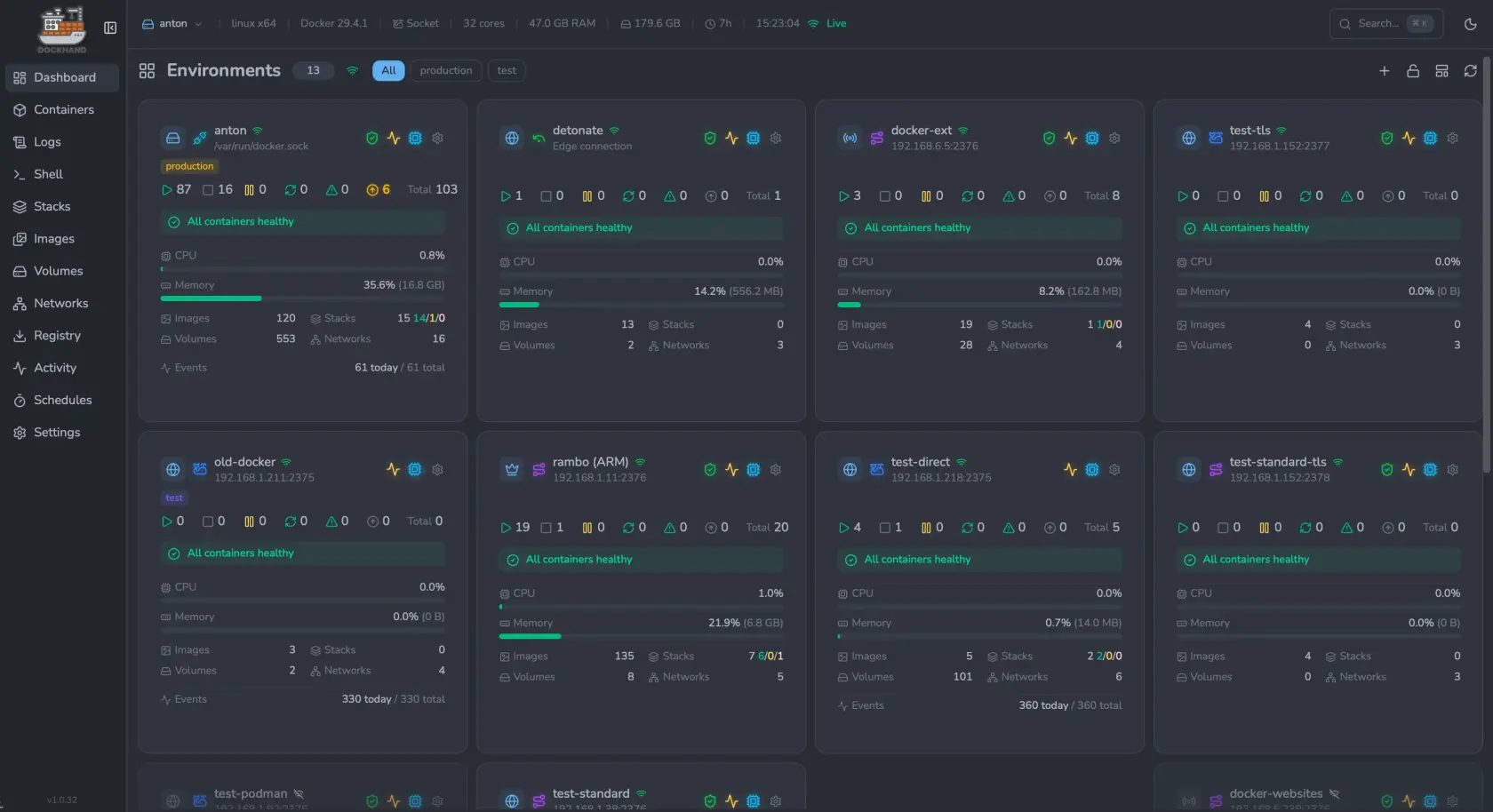
Note! At this moment you can manage remote machines via one central Dockhand instance. However, the compose files live on the Dockhand instance instead of the remote machine. This means if the central Dockhand instance would go down you would also loose the compose files on your remote machine. This ain't great and hence I prefer to have a Dockhand instance on each machine until this problem is solved.
Our Stack will be using docker compose files for all its applications in this docker VM. Now, without any GUI tools this would mean that we need to edit, stop, start, and configure all applications through the terminal. Now, this is great for learning purposes and gets you to the real docker commands. However, after understanding that you can make your life easier by using a GUI that does all the docker commands in the background. Now, there are many solutions for this such as Portainer, Dockge, and others. However, the most recent kid on the block is Dockhand. The amazing thing about this solutions is that it allows you to monitor your docker containers, send you alerts if something is up and send you alerts when new updates for containers are available. That last one is huge!!! It is so important to keep your containers up to date and have someone looking out for your when a new update is available is such a game changer. Instead of manually checking every week for new updates (which I always forget) it is just great that you get an email in your inbox with updates if they are available. Next to this a summary of Dockhead capabilities is.
- Container Management: Start, stop, restart, and monitor containers in real-time
- Compose Stacks: Visual editor for Docker Compose deployments
- Git Integration: Deploy stacks from Git repositories with webhooks and auto-sync
- Multi-Environment: Manage local and remote Docker hosts
- Terminal & Logs: Interactive shell access and real-time log streaming
- File Browser: Browse, upload, and download files from containers
- Authentication: SSO via OIDC, local users, and optional RBAC (Enterprise)
Installation
The installation of Dockhand is fairly straightforward, the only thing you should think about is where you would like to save most of your docker compose files. This could be for instance just in /home/user/dockhand/ and you could also give it access to multiple locations inside of your VM. Personally I save everything underneath /opt/stacks simply because I am used to that due to Dockge that I was mainly using before Dockhand. If that's figured out you can find the docker compose on their website here.
1. Create the Dockhand directory with
mkdir -p /opt/stacks/dockhand2. Then go inside the directory and create the following docker compose file with nano compose.yaml and copy paste the following
compose.yaml
services:
  postgres:
    image: postgres:16-alpine
    restart: unless-stopped
    environment:
      POSTGRES_USER: dockhand
      POSTGRES_PASSWORD: changeme
      POSTGRES_DB: dockhand
    volumes:
      - ./postgres_data:/var/lib/postgresql/data

  dockhand:
    image: fnsys/dockhand:latest
    ports:
      - 3000:3000
    environment:
      DATABASE_URL: postgres://dockhand:changeme@postgres:5432/dockhand
    volumes:
      - /var/run/docker.sock:/var/run/docker.sock
      - ./dockhand_data:/app/data
      - /opt/stacks:/opt/stacks # Directory in which you plan to host docker compose files
    depends_on:
      - postgres
    restart: unless-stopped
3. Sweet then what is left is
docker compose up -d4. You can then reach your Dockhand instance on http://IP-Docker-VM:3000 or the port you specified for your instance.
Dockhand Configuration
1. The first thing to do when everything is up and running is creating an account for obvious security purposes
2. Simply go to Settings > Authentication > Users > + Add User
3. Create a user and make sure that you check that the Authentication toggle is turned ON
Remote Machines
As stated in the warning above, today it is still recommended to
No comments to display
No comments to display